Visualization Nodes
What are Visualization Nodes?
Visualization nodes are specialized compute nodes designed for GPU-accelerated interactive visualization and rendering tasks. Unlike standard GPU nodes which are intended for batch computation, visualization nodes provide a full graphical desktop environment accessible remotely via VNC, making them suitable for running GUI-based applications and interactive visualizations directly on the cluster.
Not for heavy computation
Visualization nodes are intended for visualization and interactive sessions only. Do not use them for training deep learning models, running simulations, or other compute-intensive workloads — use the GPU or CPU partitions for those. Visualization nodes are a shared resource and should be kept available for users who need interactive access.
Typical use cases include:
- Interactive 3D visualization of large datasets
- Live monitoring of long-running jobs on compute nodes via real-time plots
- Inspecting trained model behaviour in reinforcement learning environments
- Running GUI-based scientific software without transferring large datasets to a local machine
Hardware
Visualization nodes are equipped with an NVIDIA L4 GPU (23 GB VRAM), optimized for graphics workloads.
Partition
Visualization nodes use the viz partition. Always specify --partition=viz in your job scripts.
Submitting Batch Jobs
Visualization nodes accept standard SLURM batch jobs for non-interactive workloads such as offscreen rendering. This is the same workflow as submitting to any other partition — simply specify --partition=viz.
Example batch job script
Connecting to a Visualization Node
For interactive use, visualization nodes are accessed through a VNC desktop session. The session is started and managed with a single command: viz-connect.
Requirements
Install TigerVNC Viewer on your local machine before connecting:
Starting a Session
Start VNC session
The command shows the current state of the visualization nodes, submits a SLURM job for your desktop, waits for it to start, and then prints the connection instructions:
[abcke123@login02 ~]$ viz-connect
Stav viz nodov:
   viz01  idle
   viz02  idle
Job 165148 odoslany, cakam na viz node...

============================================================
Plocha bezi na viz01   (job 165148, zostava: 7:59:58)
============================================================
1) Na svojom PC otvor tunel (okno nechaj otvorene):
      ssh -L 5901:viz01:5958 abcke123@login02.perun.tuke.sk -N
2) TigerVNC Viewer  ->  localhost:5901
      Username: abcke123
      Password: tvoje PERUN heslo

Zatvorenie okna VNC  = plocha bezi dalej, staci sa znova pripojit
                        (bez pripojenia max. 2 hodiny, potom sa session ukonci)
Odhlasenie v ploche  = session konci, node sa uvolni
viz-connect --kill   = ukoncenie z login nodu
============================================================
The session runs as a regular SLURM job in the viz partition, so you can also see it with squeue:
Connecting
-
Open a new terminal on your local machine and run the SSH tunnel command from the output above. The terminal will appear to hang — this is expected, leave it running.
-
Open TigerVNC Viewer, enter
localhost:5901(or whichever local port was printed) in the VNC server field, and click Connect. -
Enter your PERUN username and password when prompted.
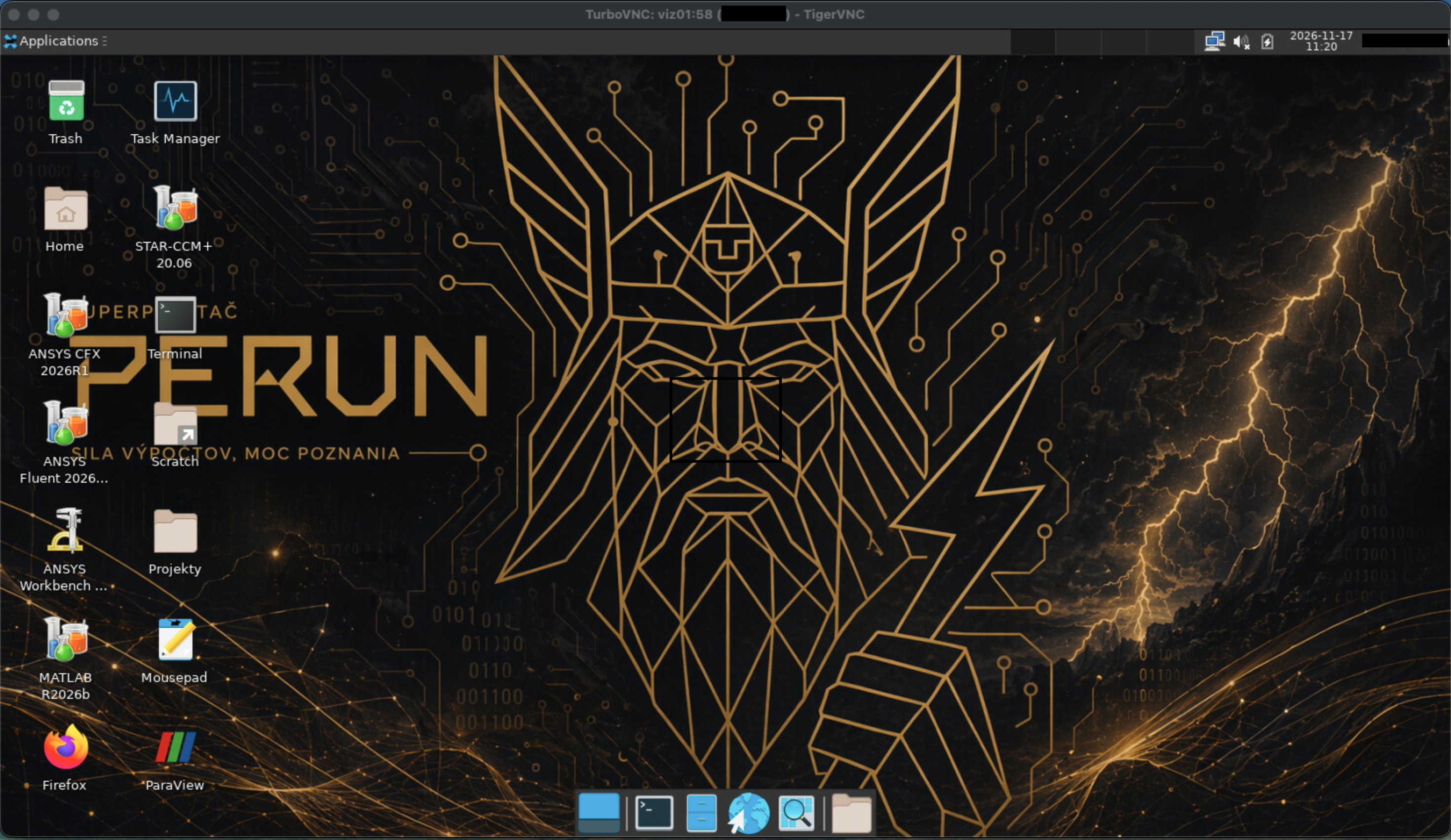
You will be connected to a remote desktop running on the visualization node.
Ports
The node and the remote port (viz01:5958 in the example above) are assigned per session and must be used exactly as printed by viz-connect. The local port (5901) is your own choice: if it is already in use on your machine, pick another free one (e.g. 5902) and use it both in the tunnel command and in the viewer address (localhost:5902).
Working on the Desktop
The remote desktop is a standard Linux desktop and works the same way as one running on your own computer.
- Desktop icons (left side) — shortcuts to the installed applications: ANSYS (CFX, Fluent, Workbench), STAR-CCM+, MATLAB, ParaView and Firefox, plus the Terminal and folder shortcuts. Double-click an icon to start it.
- Bottom bar — show desktop (minimizes all windows), terminal, file manager, web browser, application finder and folder manager.
Running Applications
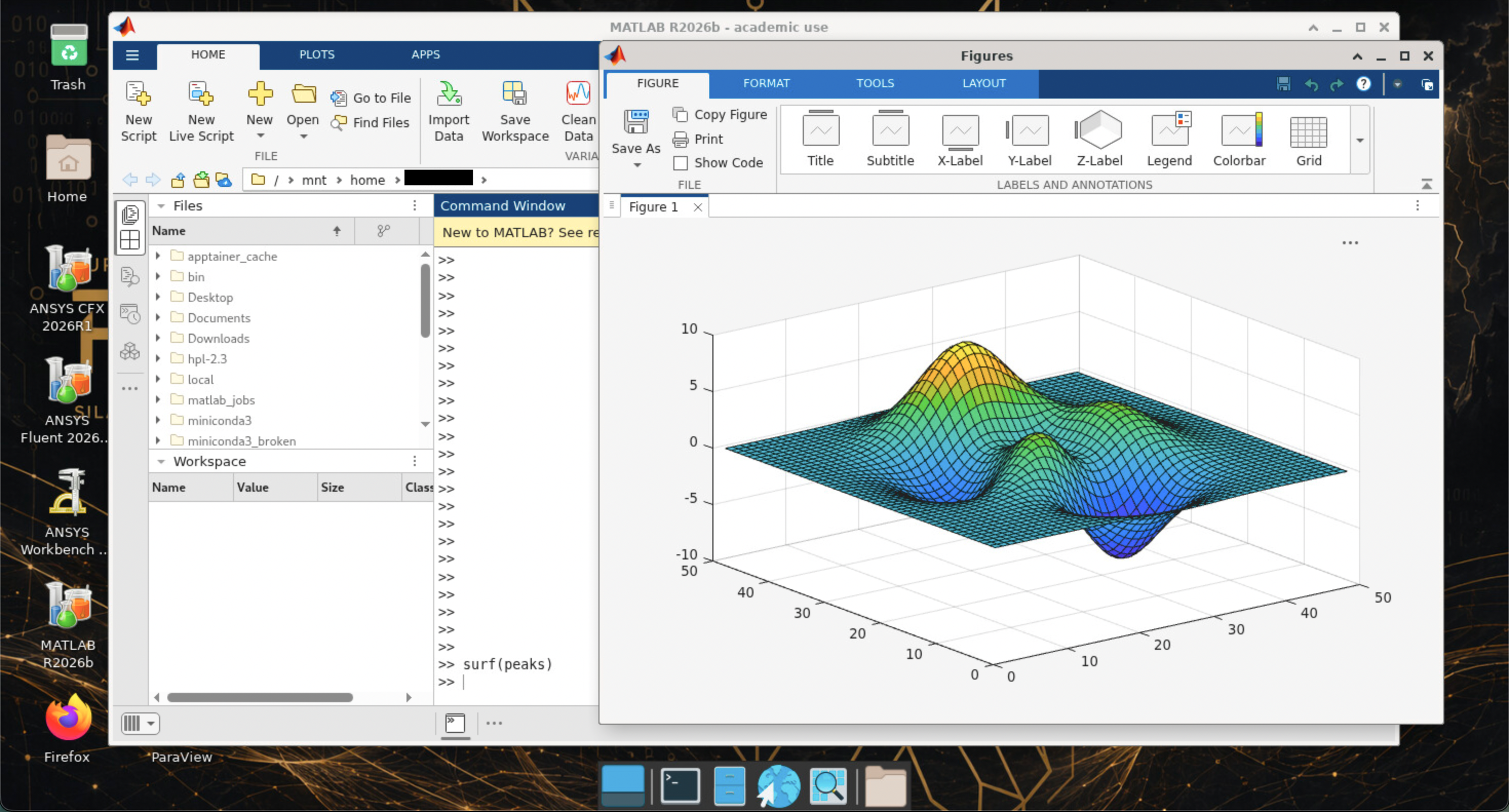
Double-click an application icon on the desktop to start it. The application window opens on the remote desktop and can be used just like on your own computer — for example MATLAB:
Starting Other Software
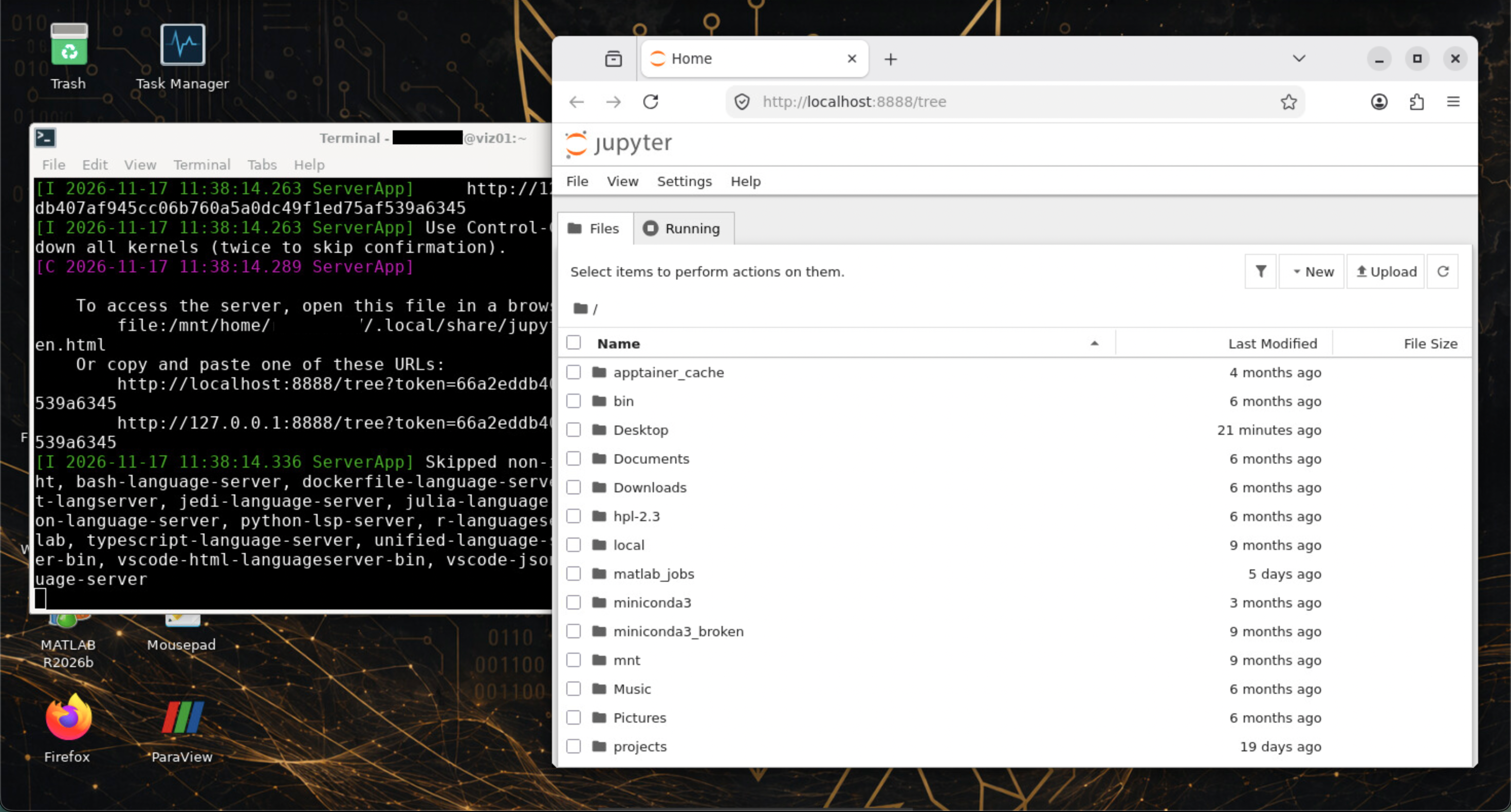
You are not limited to the shortcuts. Any software available to you can be started from the terminal. For example, Jupyter Notebook can be started with jupyter notebook and opened in Firefox on the node at http://localhost:8888:
Note
localhost here refers to the visualization node itself, so no additional SSH tunnel is needed — the browser runs on the node inside your VNC session.
Not for heavy computation
Interactive tools such as Jupyter are fine for visualization and inspecting results, but do not run training or other compute-intensive workloads on a visualization node. Use the GPU or CPU partitions for those.
Disconnecting and Ending a Session
| Action | What happens |
|---|---|
| Close the VNC viewer window | The desktop keeps running. Reconnect at any time using the same tunnel command and viewer address. If nobody connects for 2 hours, the session is ended automatically. |
viz-connect --kill (on the login node) |
The session is ended immediately. |
scancel <jobid> (on the login node) |
The session is ended immediately by cancelling its SLURM job. |
Note
The session cannot be ended from within the desktop — the shut down button is disabled.
Always close your session
Closing the viewer window does not free the node. When you are done, end the session with viz-connect --kill or scancel, so the resources are available to other users.