Secure Access via VPN
Secure Access to the TUKE Network and HPC PERUN Resources
A VPN (Virtual Private Network) creates an encrypted and secure connection between your device and the university network. This ensures that even when connecting from home, from the field, or from public Wi-Fi, your communication remains protected and behaves as if you were physically inside the internal TUKE network.
Why Is VPN Important?
- Data security – all communication is encrypted and protected from interception.
- Secure access to internal TUKE services – VPN enables access to systems available only from within the university network.
- Access to HPC PERUN – several tools and services of the supercomputer require a secure connection through VPN.
- Reliable user identification – ensures that the system can confirm your identity, increasing overall security.
VPN Client – Pritunl
The Pritunl VPN server provides secure access to the internal TUKE network using encrypted connections.
To connect, you must install the Pritunl Client and import a VPN profile provided by the administrator (URL or .tar / .ovpn file).
1. Installing Pritunl Client
Windows (with screenshots)
Download from: https://client.pritunl.com/
Click Download installer.

Run the installer.
- Select "I accept the agreement"
- Click Next

Optional: create a desktop shortcut → Next

Click Install, then Finish.


Linux (Ubuntu / Debian)
Add the repository:
echo "deb https://repo.pritunl.com/stable/apt noble main" | sudo tee /etc/apt/sources.list.d/pritunl.list
Install GPG key:
sudo apt install gnupg -y
gpg --keyserver hkp://keyserver.ubuntu.com --recv-keys 7568D9BB55FF9E5287D586017AE645C0CF8E292A
gpg --armor --export 7568D9BB55FF9E5287D586017AE645C0CF8E292A | sudo tee /etc/apt/trusted.gpg.d/pritunl.asc
Install the client:
macOS
- Open https://client.pritunl.com/
- Download the macOS installer
- Open
.dmg - Drag Pritunl Client into Applications
2. Obtaining a VPN Profile
VPN profiles can be provided as:
| Type | Description |
|---|---|
| URL | e.g., https://remote.perun.tuke.sk/ — opens a login page where your profile is generated |
| .tar file | downloaded from Pritunl or provided by admin |
Profiles are unique per user.
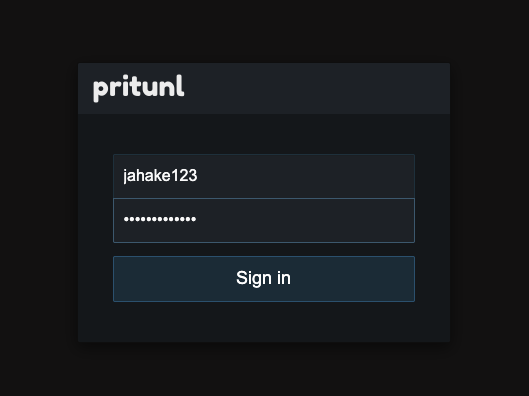
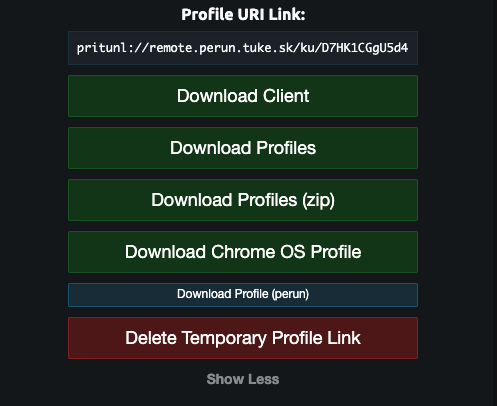
To obtain the profile for PERUN:
- Visit https://remote.perun.tuke.sk/
- Log in with your credentials
- Copy the Profile URL Link
3. Importing the VPN Profile
Importing from URL (recommended)
- Open Pritunl Client
- Click Import
- Select From URL
- Paste the copied URL
- Click Import
Importing from File (.tar)
- Open Pritunl Client
- Import Profile → From File
- Select your
.tarfile - Profile appears in the list
4. Connecting to the VPN
- Open Pritunl Client
- Select your profile (e.g., TUKE VPN)
- Choose OpenVPN or WireGuard
- Enter your VPN password if required
- Status changes to Connected
To disconnect, click Disconnect
5. Verifying the Connection
Use ping to test connectivity:
A successful response means the VPN tunnel is active.
6. Troubleshooting
| Issue | Suggested Solution |
|---|---|
| Failed to connect to server | Check your internet connection; verify VPN URL or profile file |
| User authentication failed | Check username/password; if the problem persists, contact administrator |
| Certificate expired | Request a new profile from the Pritunl portal |
| Firewall blocking connection | Ensure ports 10421/UDP, 10422/TCP, 10422/UDP or 443/TCP are not blocked |
For additional support, contact your system administrator.