SSH Key Generation Guide for PERUN
Security Warning
Never share your private key (id_ed25519).
Only the public key (id_ed25519.pub) should be uploaded to the PERUN Portal.
Supported Key Type
HPC PERUN supports the Ed25519 key algorithm on all platforms.
1. Generating SSH Keys on Windows 10/11
1.1 PuTTY 0.78+ Notice
Important
PuTTY versions 0.78 and newer cannot import OpenSSH-generated keys.
If using PuTTY, generate keys using PuTTYgen instead.
1.2 Using Windows Built-in OpenSSH
Step 1: Open Command Prompt
- Open Start
- Type cmd
- Press Enter
Step 2: Generate SSH Key Pair
Example Output
Press Enter to accept the default path, or specify a custom name.
Step 3: Set a Passphrase
You will be prompted twice to enter a passphrase.
Step 4: Key Storage Location
Keys are saved to:
Files:
- id_ed25519 — private key
- id_ed25519.pub — public key
Step 5: Upload the Public Key
Upload Only the Public Key
Upload id_ed25519.pub to the SSH Keys section in the PERUN Portal.
2. Generating SSH Keys on macOS
2.1 Overview
macOS includes OpenSSH by default.
The recommended key type is Ed25519.
2.2 Steps to Create an SSH Key Pair
Step 1: Open Terminal
Applications > Utilities- or press Cmd + Space → type Terminal
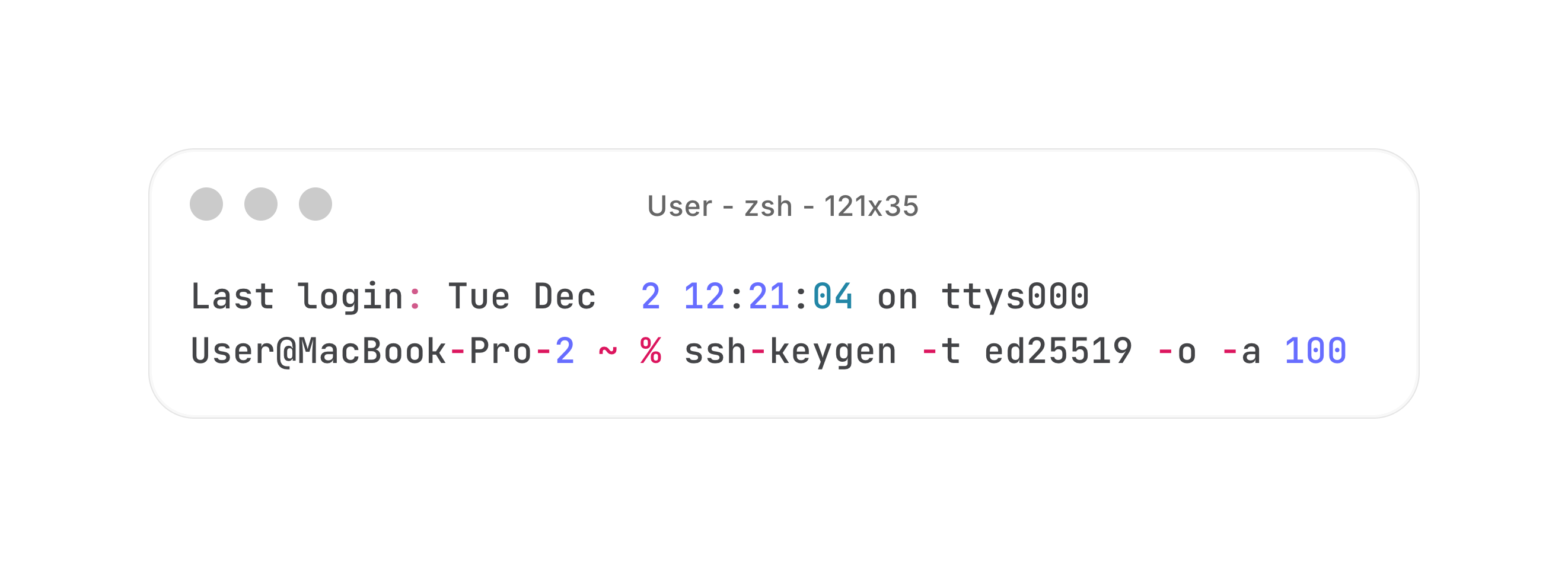
Step 2: Generate SSH Key Pair
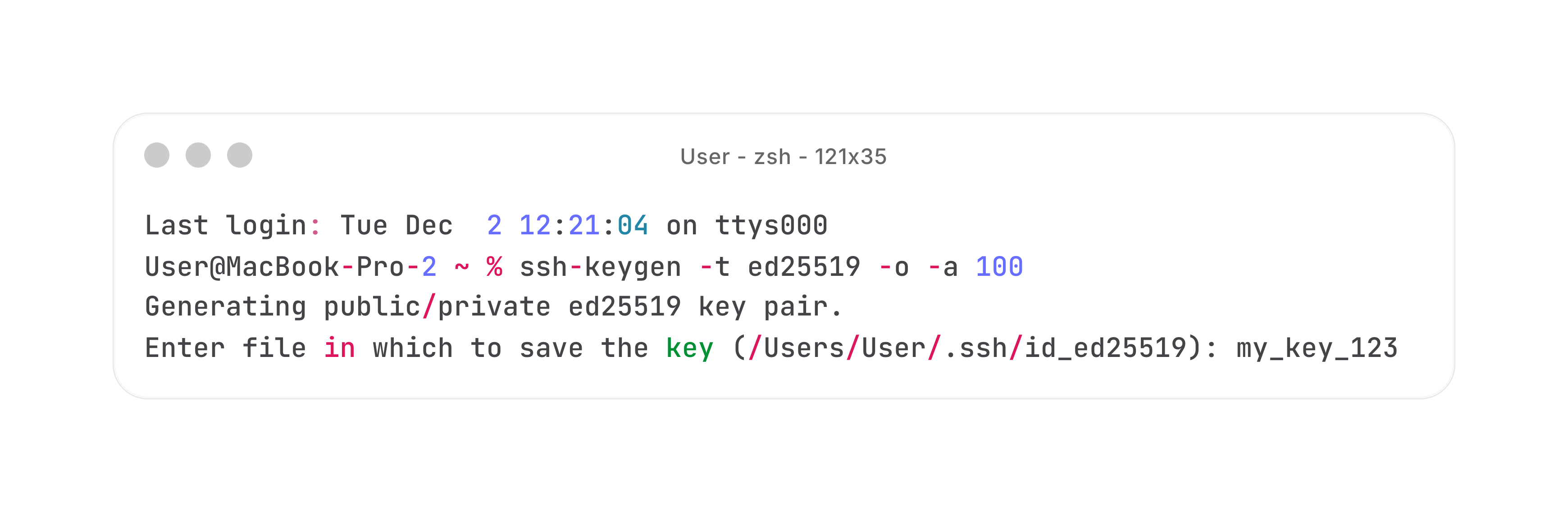
Step 3: Choose File Name
Example:
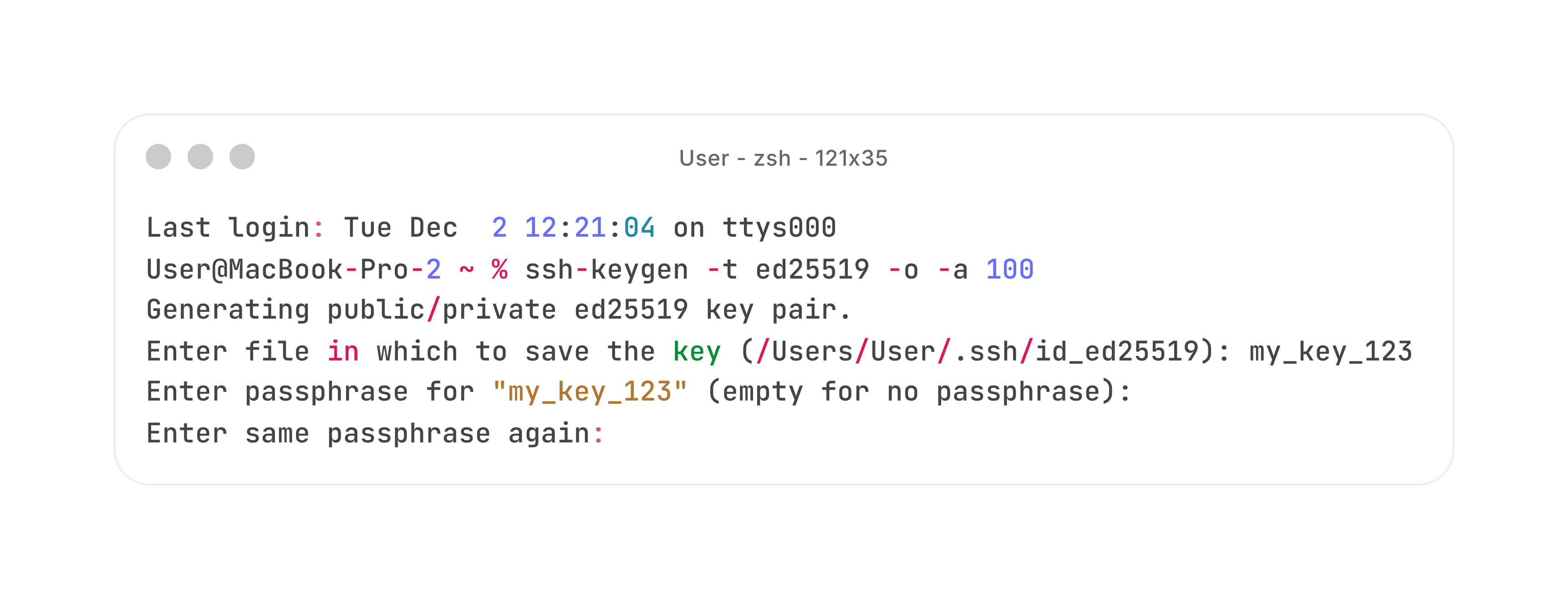
Step 4: Enter Passphrase
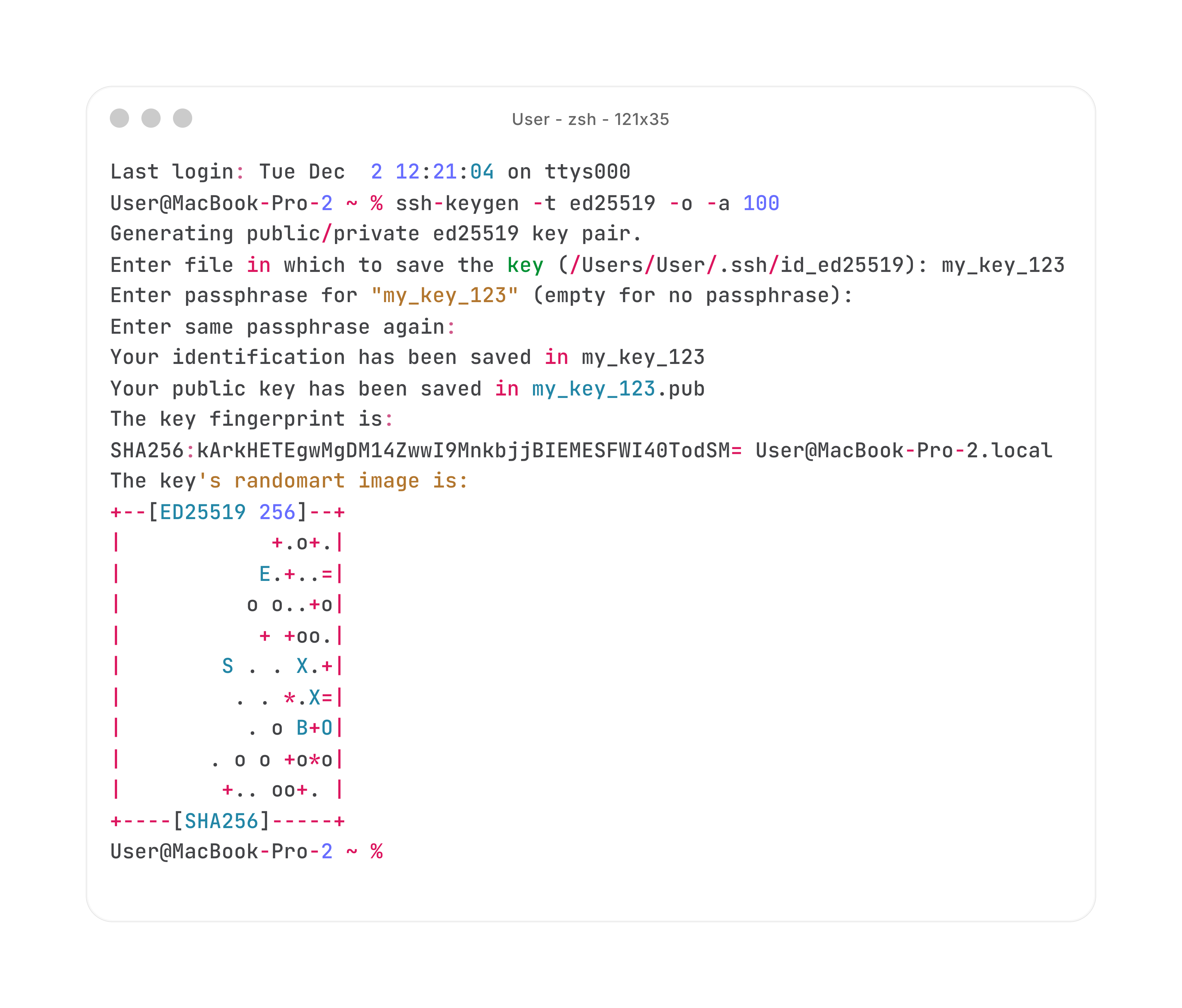
Step 5: Keys Created
Creation Confirmation
- Your identification has been saved in
my_key_123 - Your public key has been saved in
my_key_123.pub
Step 6: Upload the Public Key
Do Not Upload Private Key
Only upload the public key.
Never share the private key with anyone.